

Changing Layer Colors
A common cleanup task: a layer should be a different color in every drawing of a project. Indium does this in one save instead of file-by-file.
- Open the Layer Manager (
Ctrl+2) and add your DWG files. - Filter the Name column to the layer(s) you want to change: click the dropdown arrow on the column header and pick the names from the value list. The table now shows just that layer from every file.
- Click the Color cell of a row to open the color picker:
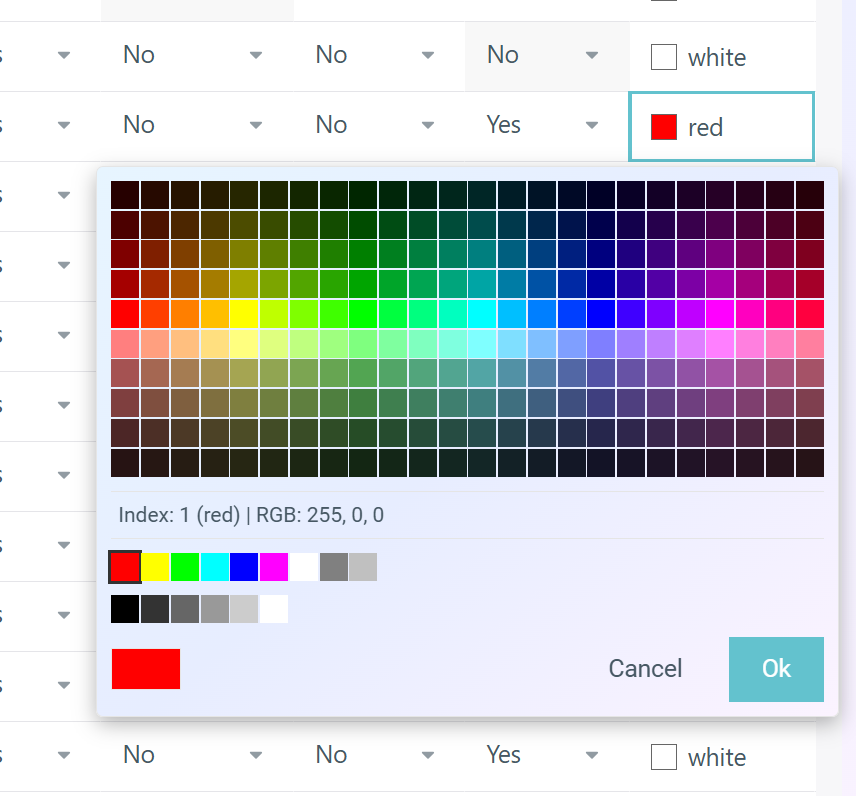
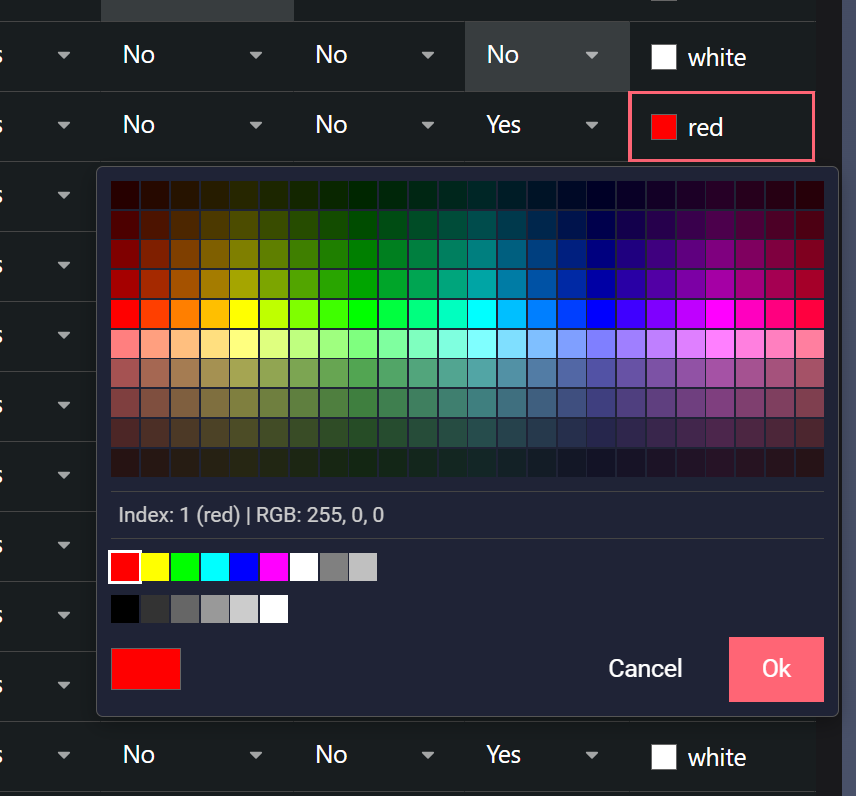
- Double-click a swatch (or click it and press Ok) to confirm. The picker covers all 255 ACI colors, with the named colors on their own row. The True Color tab takes any RGB value.
- Repeat for the other rows, or set one cell, copy it, select the remaining color cells, and paste.
- Click Save. Only visible changed rows are saved, so your filter doubles as a safety net.
- Reload (
Ctrl+R) to verify.
- You can also type a color directly into the cell: a name like
red, an ACI index like142, or a true color as255,128,0or#FF8000. - Sort the Color column to spot inconsistent colors across files. It sorts by ACI index.
- The same workflow applies to the other layer properties: linetype, lineweight, transparency, on/freeze/lock/plot states, and description.