

Layouts & Plotting
The Layout/Plot Manager (Ctrl+4) lets you view and edit layout plot settings across multiple DWG files, and batch-plot layouts to PDF or paper.
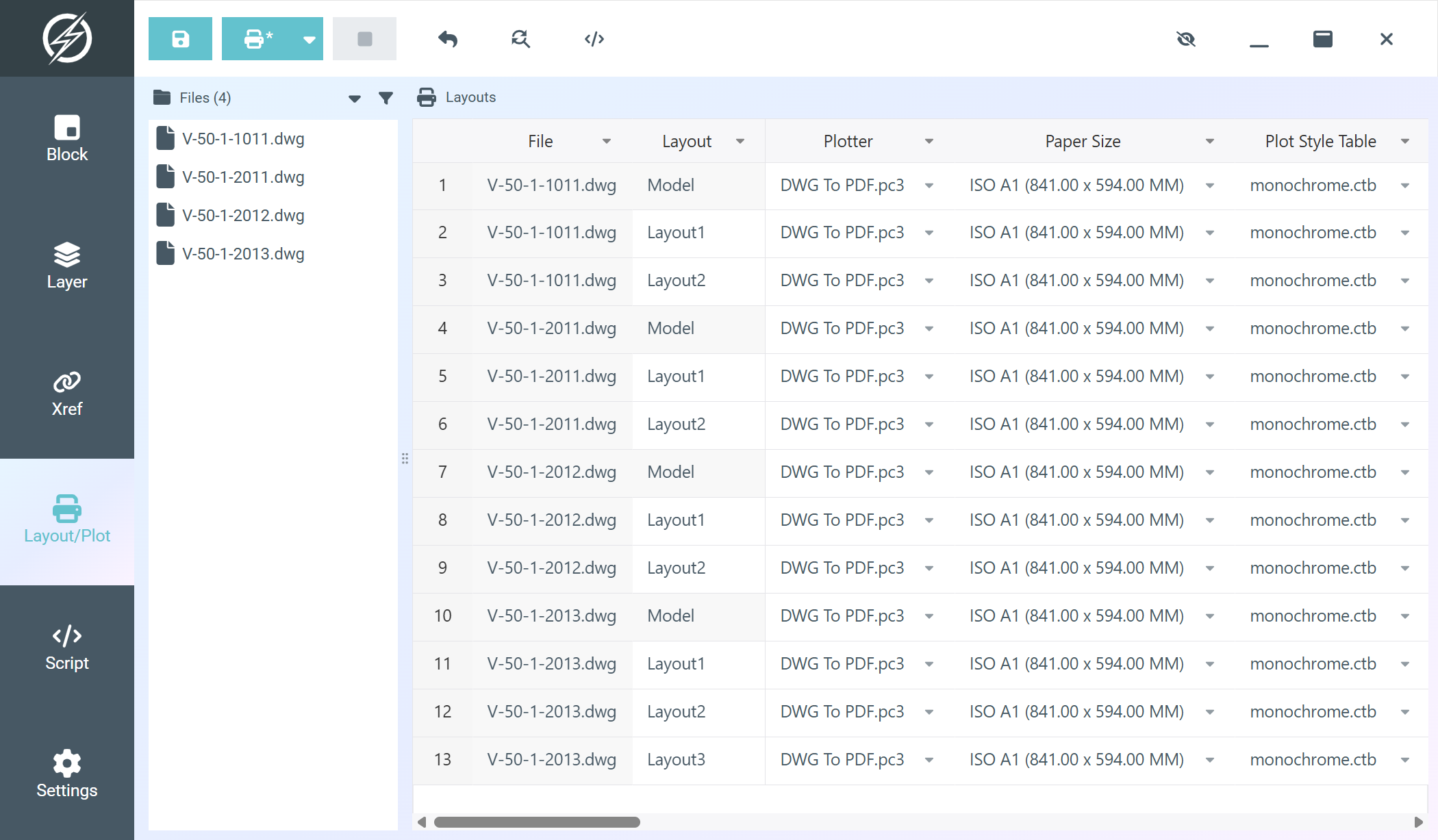
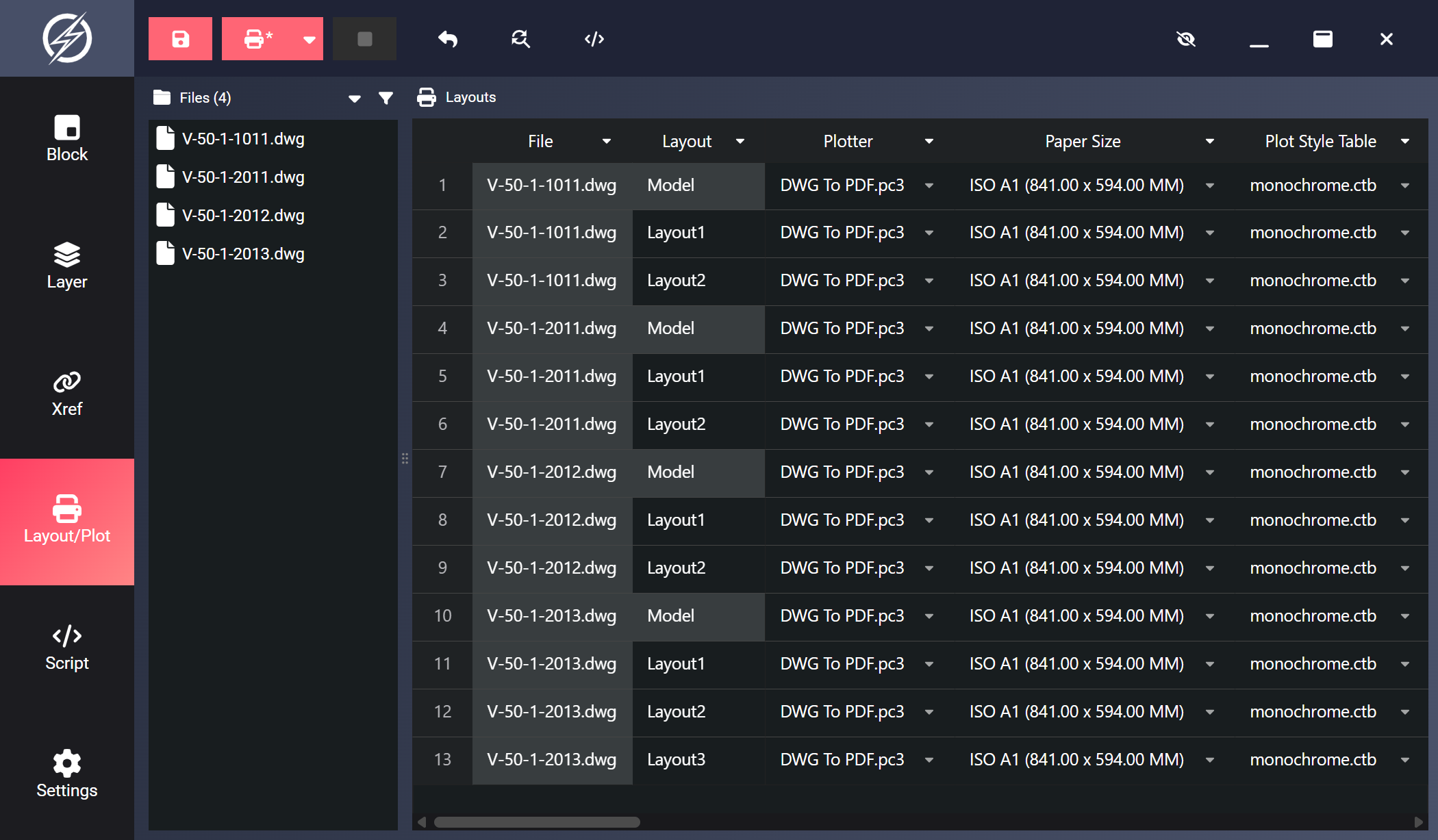
Table Columns
Section titled “Table Columns”The table contains 22 columns covering all plot configuration properties. Every column except File is editable, though some become locked depending on other values in the row (noted below).
| Column | Description |
|---|---|
| File | Source DWG filename (read-only) |
| Layout | Layout name, can be renamed (cannot be blank or Model) |
| Plotter | Plotter/printer device |
| Paper Size | Paper size for the selected plotter |
| Plot Style Table | Plot style table (.ctb/.stb) |
| Plot Area | What to plot: Display, Extents, Layout, or Window |
| Window min (X,Y) / Window max (X,Y) | Window plot coordinates, editable only when Plot Area is Window |
| Center plot | Yes/No. Yes locks the offset columns |
| Plot Offset X / Plot Offset Y | Plot origin offsets |
| Fit To Paper | Yes/No. Forced to No when Plot Area is Layout, and Yes locks Scale |
| Scale | Preset scales from 1:1 to 1:5000, or type a custom scale |
| Scale unit | Millimeters, Inches, or Pixels |
| Scale lineweights | Yes/No |
| Drawing Orientation | Portrait or Landscape |
| Plot upside-down | Yes/No |
| Plot object lineweights | Yes/No |
| Plot transparency | Yes/No |
| Plot with plot styles | Yes/No |
| Plot paper space last | Yes/No (not applicable to Model) |
| Hide paperspace objects | Yes/No (not applicable to Model) |
Plot Environments
Section titled “Plot Environments”Plotting can run in three environments: CAD (new visible AutoCAD instance), CAD attach (an already running AutoCAD), or Background (parallel headless processes). Select one from the eye-icon menu in the toolbar. The default is CAD and can be changed in Settings (Ctrl+6) under Layout manager.
See Run Environments for how each mode behaves. Notes specific to plotting:
- In Background, plot progress is tracked per layout: if one layout fails, the remaining layouts of that file still plot, and Indium lists the failed layouts in a notification.
- Plots never time out. A long plot through AutoCAD can take as long as it needs.
Pre/Post Plot Scripts
Section titled “Pre/Post Plot Scripts”You can run scripts before and after plotting, for example to prepare a drawing beforehand or clean up afterward. Click the Scripts button (code icon) in the toolbar to open the Pre / post plot scripts dialog:
- Two editors: Before plotting and After plotting. Either can be left blank.
- Scripts are written in command syntax (like a
.scr) or AutoLISP. - Each script runs once per file, in every environment (CAD, CAD attach, and Background).
The Scripts button shows a dot when scripts are set, and its dialog has a Clear button to remove them. Scripts apply to the current run only and are not saved between sessions.
Plot Output
Section titled “Plot Output”Output Folder
Section titled “Output Folder”Use the dropdown arrow next to the Plot button to choose where output lands:
- Select folder: Choose a specific output directory.
- Use source folder: Save plot output alongside the source DWG (default).
- History: Quick access to the last five output folders, with a Clear history option.
When a specific output folder is set, the Plot button shows a * marker as a reminder.
Plot Naming
Section titled “Plot Naming”Configure how plot output files are named in Settings (Ctrl+6) under Plot result name:
- File name - Layout name:
filename (layoutname)(default) - File name:
filename - Layout name:
layoutname
Dots in file and layout names are preserved: plotting aaa.bbb.dwg produces aaa.bbb.pdf. Characters not allowed in filenames (\ / : * ? " < > |) are replaced with underscores.
Plotter Configuration
Section titled “Plotter Configuration”When you first open the Layout manager, Indium fetches the available plotters, paper sizes, and plot style tables. Plotter fetching (Settings → Layout manager, or the eye-icon menu in the toolbar) controls where they come from:
- Pc3: PC3 plotter configuration files, read through CAD (default)
- Pc3 (fast file parser): The same PC3 files, read directly by Indium’s built-in parser, considerably faster when switching to the Layout manager
- Pc3 + Local printers: PC3 files plus locally installed printers, read through CAD
- Pc3 + Local + Network printers: All of the above plus network printers, read through CAD
Filtering and Sorting
Section titled “Filtering and Sorting”Sort by clicking a column header, and filter via the dropdown arrow on any header. See Filter and Sort for how table filtering works. Both saving and plotting act on valid, visible rows only, so filters control what gets plotted.
Toolbar
Section titled “Toolbar”| Button | Action |
|---|---|
| Save | Write changed layout settings back to DWG files (valid, visible rows) |
| Plot | Plot all valid, visible layout rows |
| Plot output folder | Select output folder, use source folder, or pick from history |
| Stop | Cancel an in-progress save or plot |
| Undo | Revert changes in selected cells |
| Find/Replace | Find and replace in selected cells |
| Scripts | Add pre/post plot scripts |
| Settings (eye icon) | Choose CAD, CAD attach, or Background, plus sub-menus for plotter fetching, plot result name, and worker count |