

Blocks
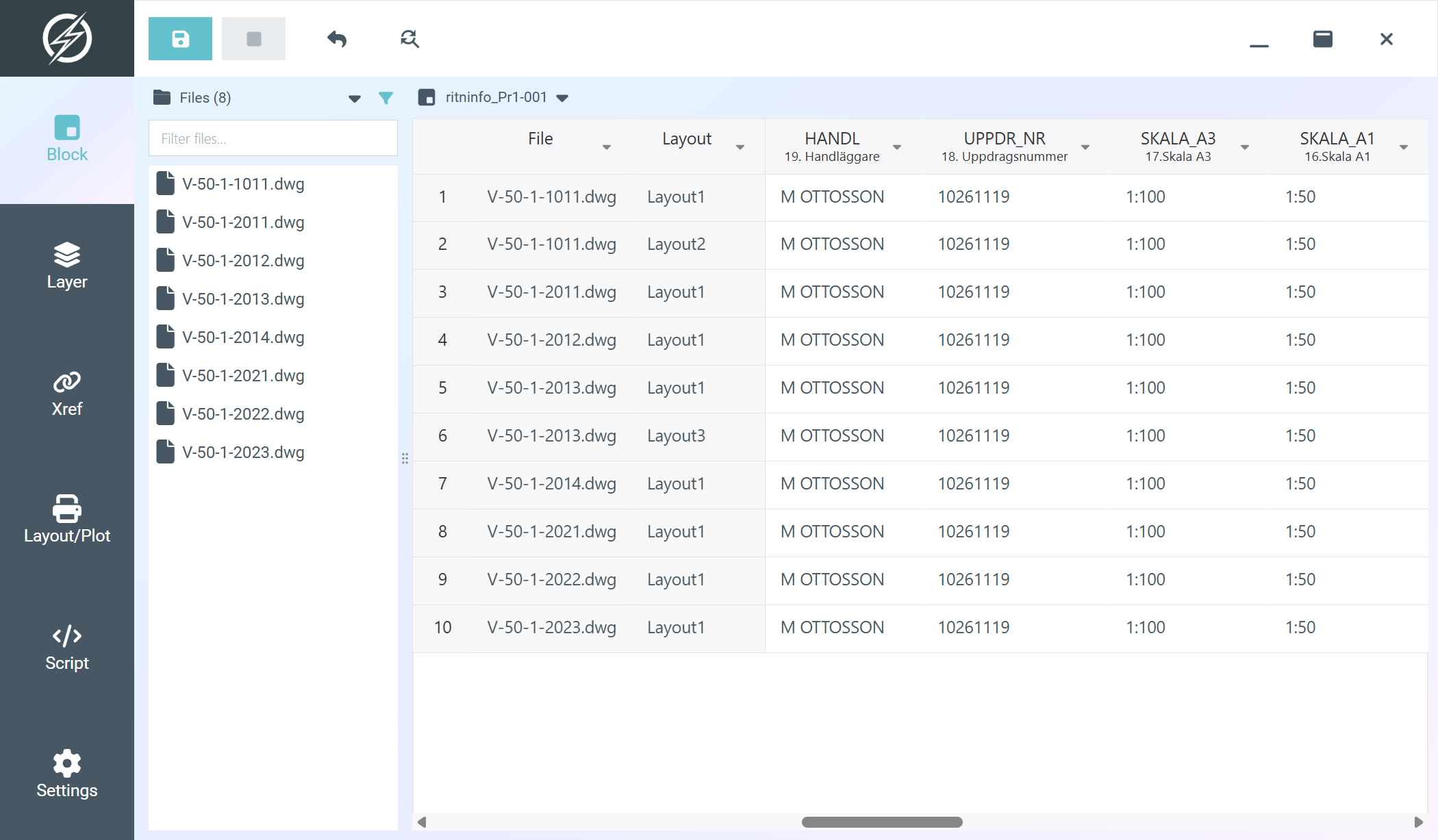
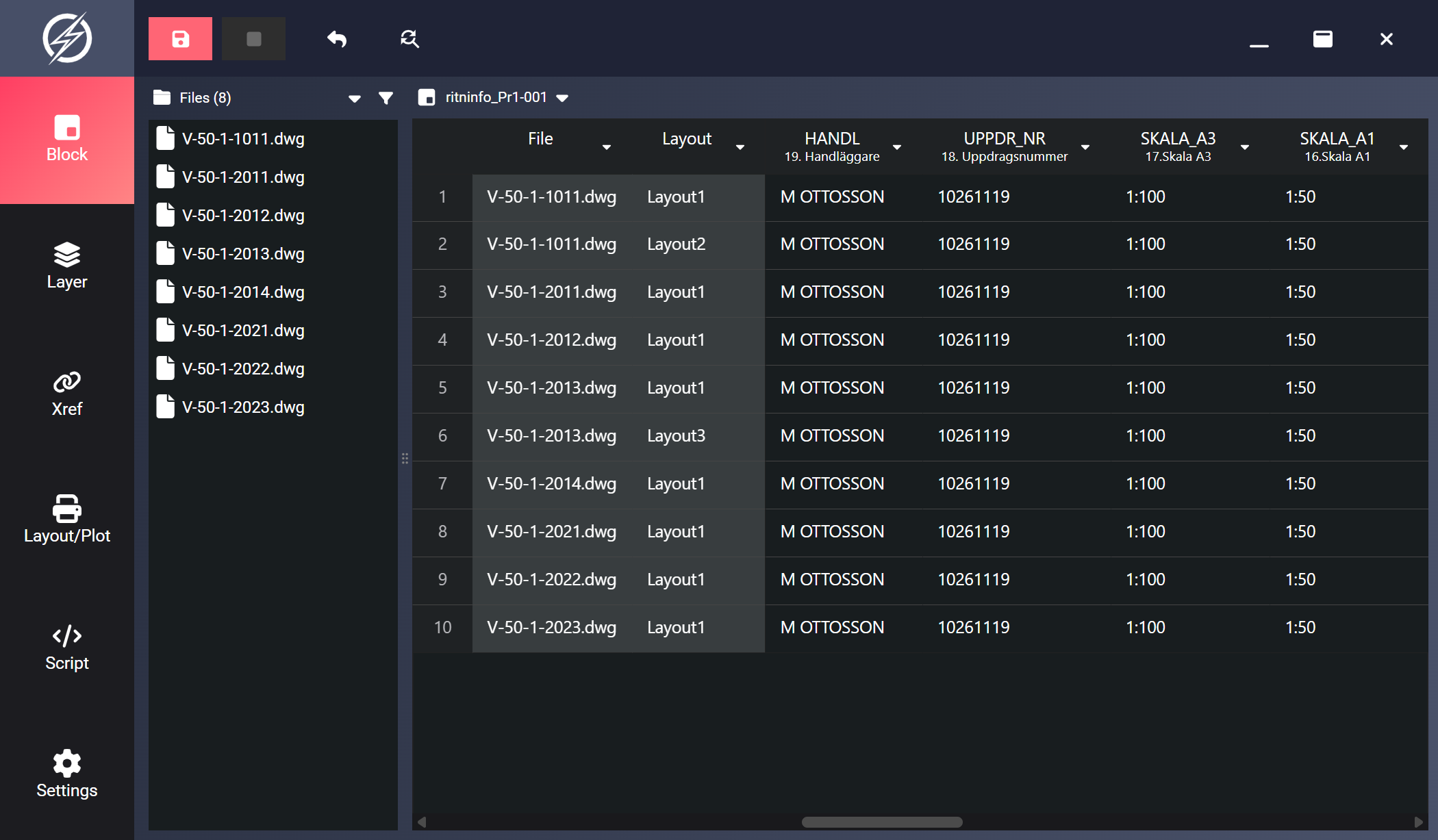
The Block Manager (Ctrl+1) lets you batch-edit block attribute values across multiple drawings.
Block Selector
Section titled “Block Selector”At the top of the Block Manager is a dropdown listing every block found across your loaded files. Select a block to populate the table with all of its instances from all files.
- The same block appearing in several files is listed once, and its instances are combined into one table.
- Anonymous dynamic blocks are listed as
Dynamic <number>, and dynamic blocks with identical attribute tags are grouped together as a single entry so you can edit them all at once.
If you switch blocks while the table has unsaved changes, Indium asks whether to discard them before switching.
Table Columns
Section titled “Table Columns”The columns depend on the selected block:
- File: Source DWG filename (read-only)
- Layout: The layout the instance is placed on (read-only)
- One column per attribute: Each attribute tag of the block gets its own editable column, with the attribute’s prompt shown under the tag in the header.
Because columns follow the block’s attributes, the table is rebuilt each time you select a different block.
Field Values
Section titled “Field Values”Attributes that contain an AutoCAD field (auto-updating text such as the filename, date, or a sheet number) show the underlying field expression (e.g. %<\AcVar Filename>%) rather than the rendered text. That expression is what you edit and save, so the field keeps updating automatically in AutoCAD instead of being flattened to plain text.
Fields are authored in AutoCAD itself: while editing the attribute value, right-click and choose Insert Field (or use the FIELD command). From there you can copy the resulting expression into other drawings with Indium, either by pasting it across rows or with Find/Replace.
Filtering and Sorting
Section titled “Filtering and Sorting”Sort by clicking a column header, and filter via the dropdown arrow on any header. See Filter and Sort for how table filtering works. In the Block Manager, filters and sorting are also cleared when you switch blocks.
Toolbar
Section titled “Toolbar”| Button | Action |
|---|---|
| Save | Write changed attribute values back to DWG files |
| Stop | Cancel an in-progress save operation |
| Undo | Revert changes in selected cells to their original values |
| Find/Replace | Find and replace in selected cells |