

Scripts
The Script Manager (Ctrl+5) lets you write and execute AutoCAD scripts across multiple DWG files in batch, with a dedicated terminal per file.
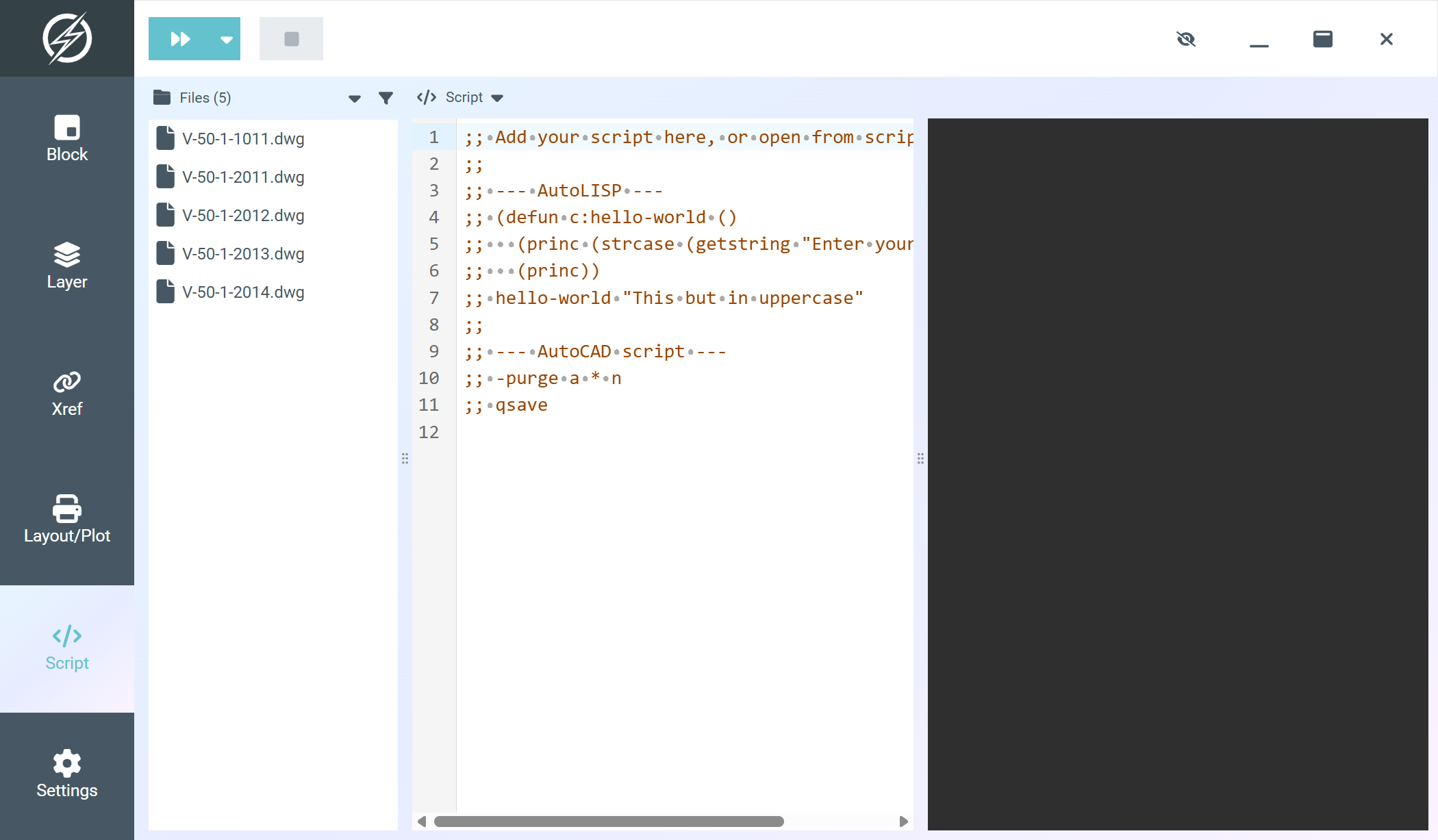
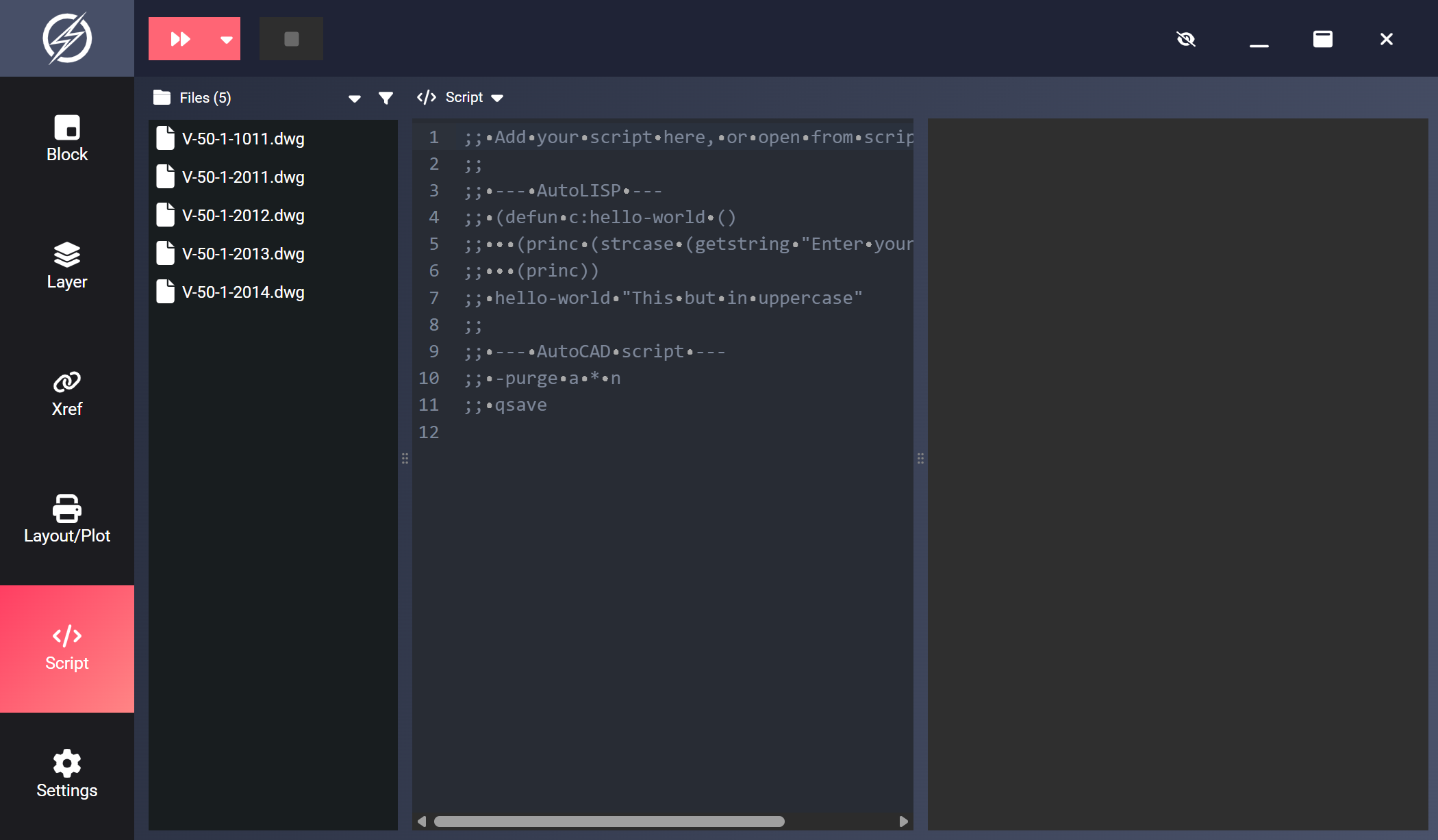
The page is split into the file list, the script editor, and the terminal panel to the right of the editor. All three panes can be resized by dragging the dividers between them.
Script Editor
Section titled “Script Editor”The editor supports two script formats:
.SCR: AutoCAD command scripts (plain command sequences).LSP: AutoLISP programs
It highlights LISP syntax and shows whitespace markers, which matters in command scripts where a blank line or trailing space is a command input.
Lines that start with ;; (at the beginning of the line) are treated as comments and stripped before execution.
Script Menu
Section titled “Script Menu”The Script menu above the editor contains:
- Open: Load a
.scror.lspfile into the editor. - Save / Save as: Write the editor content back to a file (Save is available once the script has a file path).
- History: Reopen a recently used script file, or clear the history.
Run Environments
Section titled “Run Environments”Scripts can run in three environments: CAD (new visible AutoCAD instance), CAD attach (an already running AutoCAD), or Background (parallel headless processes). Select one from the eye-icon menu in the toolbar. The default is Background and can be changed in Settings (Ctrl+6) under Script manager.
See Run Environments for how each mode behaves, including how script output streaming and prompt answering differ per environment.
Running Scripts
Section titled “Running Scripts”The Run button starts the script on all files. Use its dropdown to instead run only on the files selected in the file list. Each file gets its own terminal, and selecting a single file in the file list shows its output.
Pressing Stop behaves differently per environment:
- CAD / CAD attach: the file currently running finishes, remaining files are skipped, and AutoCAD shuts down cleanly.
- Background: running workers are stopped immediately and queued files are dropped.
Example Scripts
Section titled “Example Scripts”Purge and Save (.SCR)
Section titled “Purge and Save (.SCR)”This command script purges all unused items and saves the drawing:
-PURGEALL
NQSAVE
Simple AutoLISP (.LSP)
Section titled “Simple AutoLISP (.LSP)”This AutoLISP snippet prints the drawing filename to the command line:
;; Print current filename(princ (strcat "\nFile: " (getvar "DWGNAME")))(princ)Toolbar
Section titled “Toolbar”| Button | Action |
|---|---|
| Run | Execute the script (dropdown to choose all files or selected files) |
| Stop | Stop the script run |
| Settings (eye icon) | Choose CAD, CAD attach, or Background, plus a sub-menu for worker count |