

Xrefs
The Xref Manager (Ctrl+3) lets you view and manage external references (xrefs) across multiple drawings. It has two views, switched with the Definitions / Instances toggle above the table:
- Definitions: one row per attached xref per file. Edit names, paths, load state and type, attach new xrefs or detach existing ones.
- Instances: one row per placed instance of an xref. Edit placement (position, scale, rotation), layer, layout and draw order, duplicate instances, or delete individual instances without detaching.
Changes from both views are saved together in one batch when you click Save.
Definitions view
Section titled “Definitions view”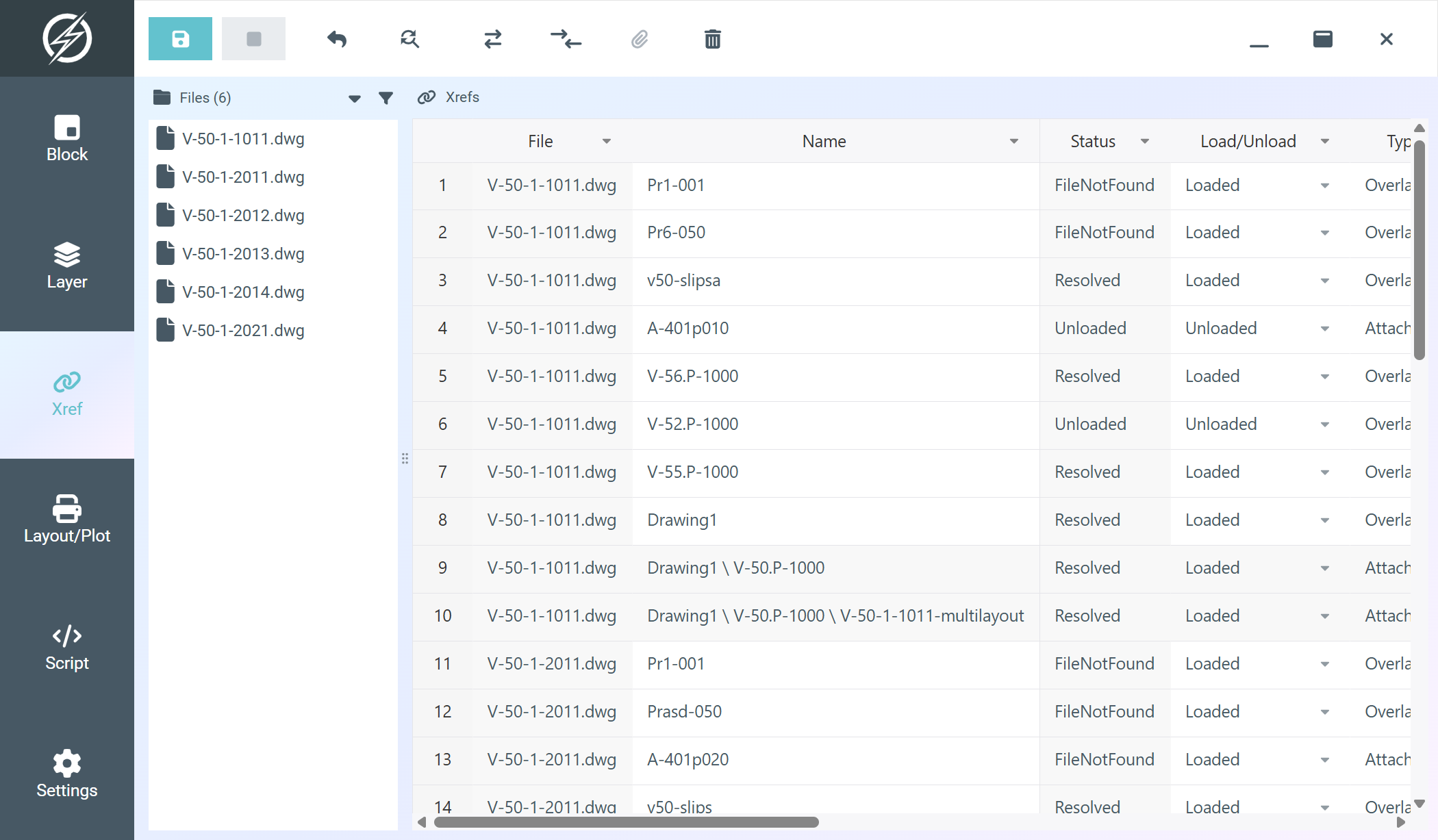
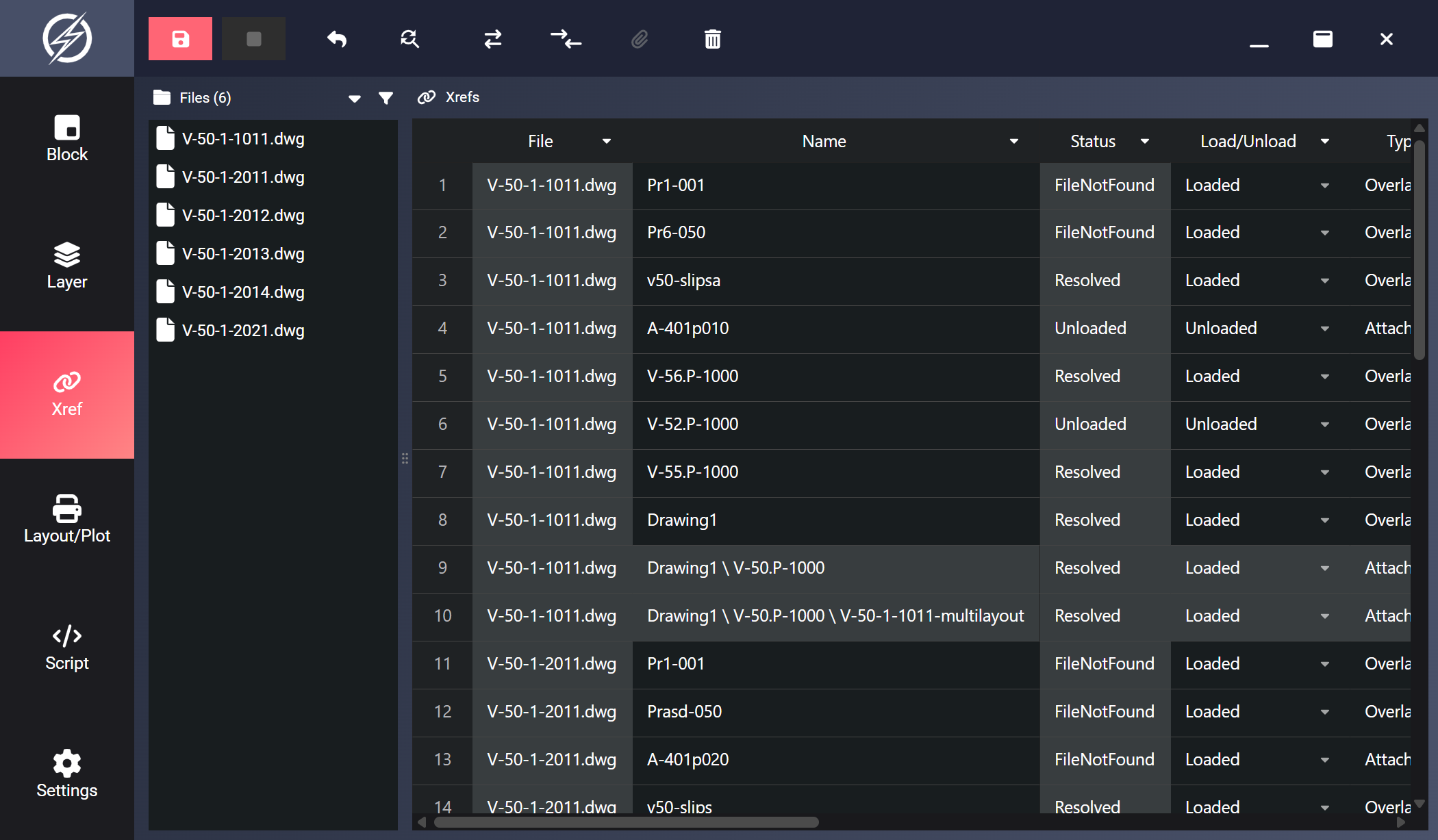
| Column | Editable | Description |
|---|---|---|
| File | No | Source DWG filename |
| Name | Yes | Xref name |
| Status | No | Whether the xref file can be found |
| Load/Unload | Yes | Loaded or Unloaded |
| Type | Yes | Overlay or Attached |
| Path | Yes | Current xref file path |
| Saved Path | No | The resolved absolute path of the xref |
Nested xrefs (xrefs inside an attached xref) are shown as parent \ child and are read-only.
Path Conversion
Section titled “Path Conversion”The toolbar provides two path conversion buttons that operate on the selected cells:
- Make path absolute: Converts relative xref paths to absolute paths.
- Make path relative: Converts absolute xref paths to relative paths based on the host DWG’s location.
The conversion updates the Path column in the table. Click Save to write the new paths into the drawings.
Adding and Removing Xrefs
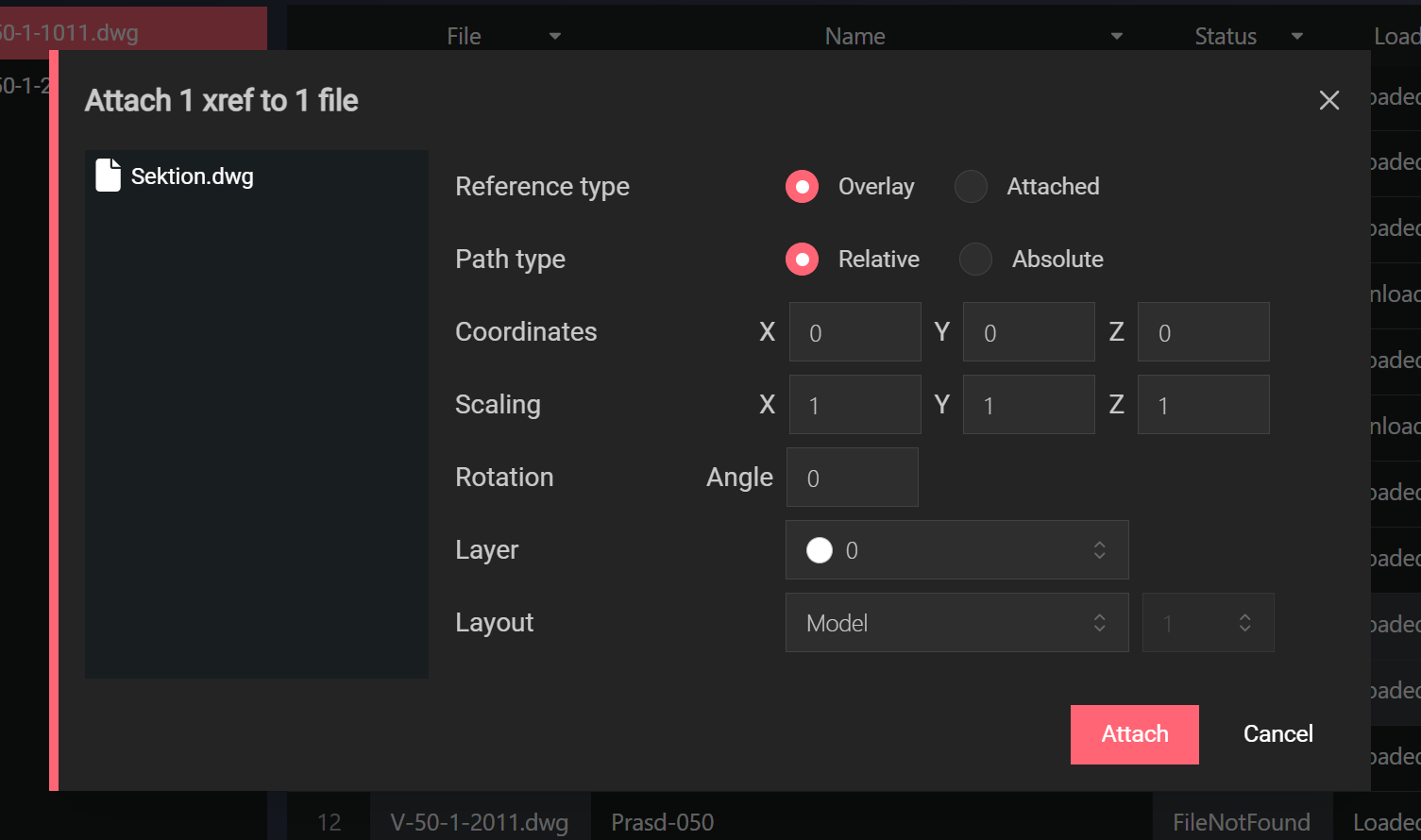
Section titled “Adding and Removing Xrefs”Use the Add xref (paperclip) toolbar button to attach one or more DWG files to the files selected in the file list. The attach dialog covers reference type, path type, placement, and the target layer/layout.
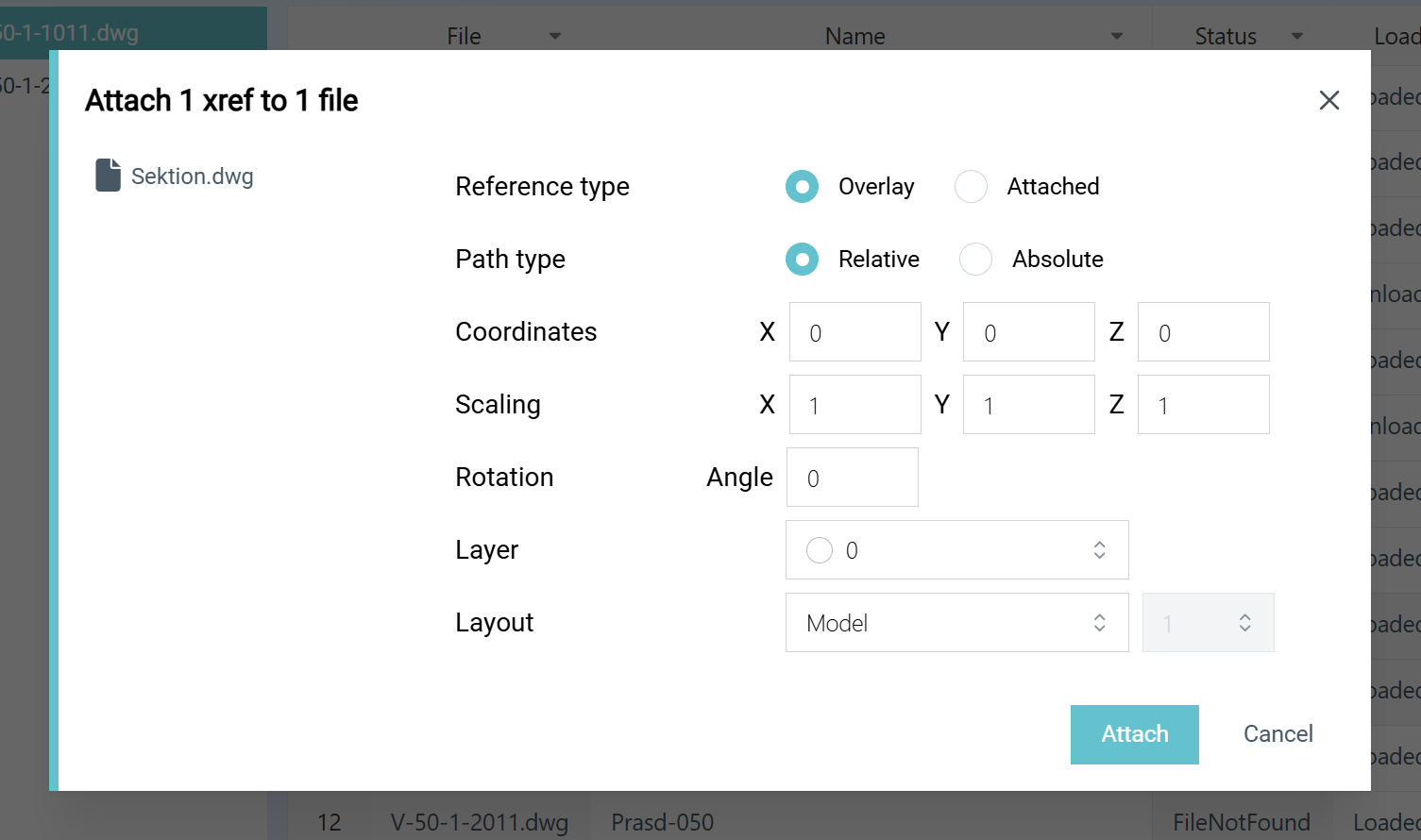
Toggle remove xref marks selected rows for deletion (click again to unmark). Both kinds of change are applied when you save.
Attaching also immediately adds matching rows in the Instances view, where you can fine-tune each new instance’s placement before saving. Detaching removes all of the xref’s instances, and the Instances view shows them as deleted while the definition is marked.
For the full walkthrough with the dialog explained, see Adding & Removing Xrefs.
Instances view
Section titled “Instances view”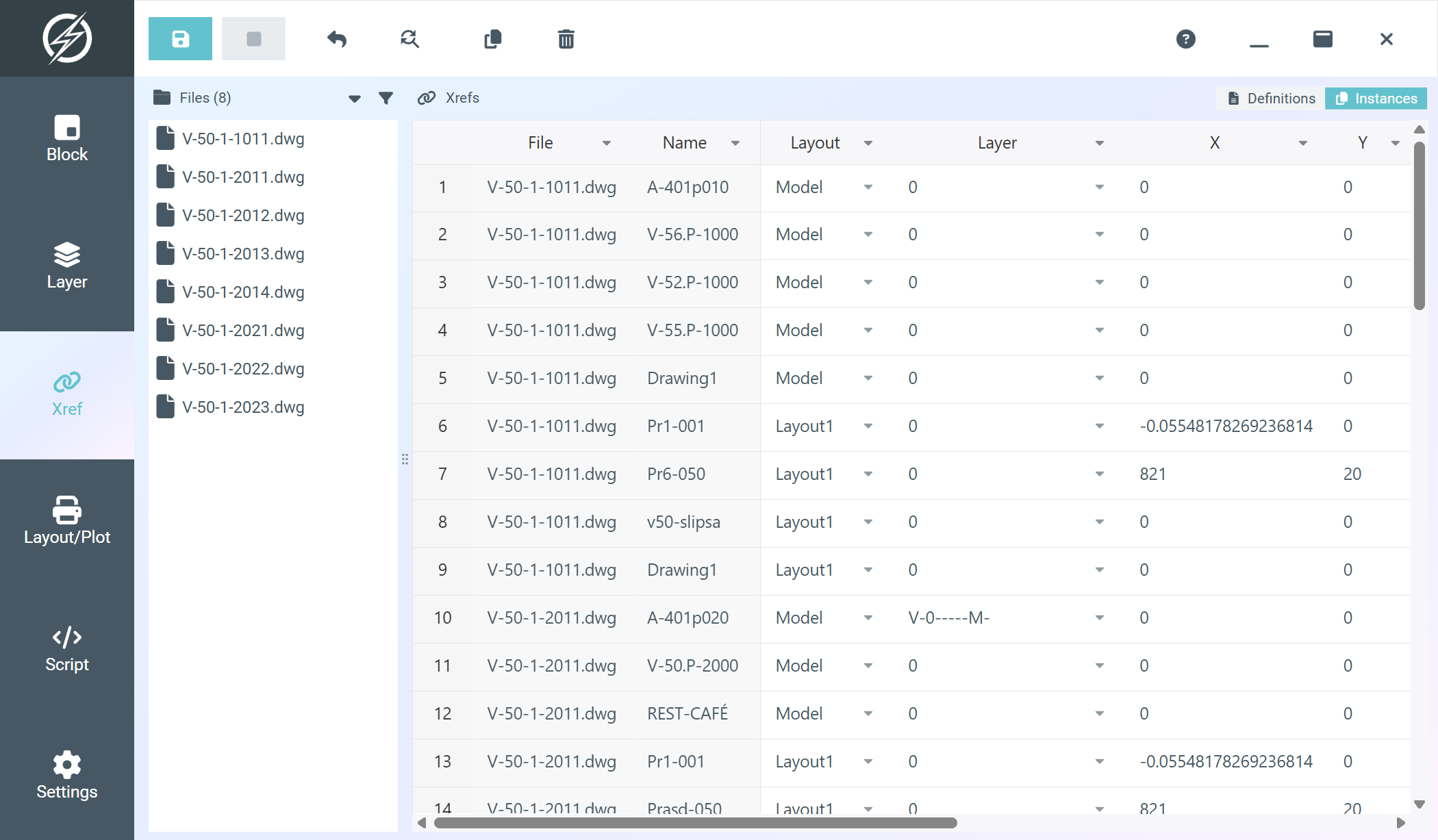
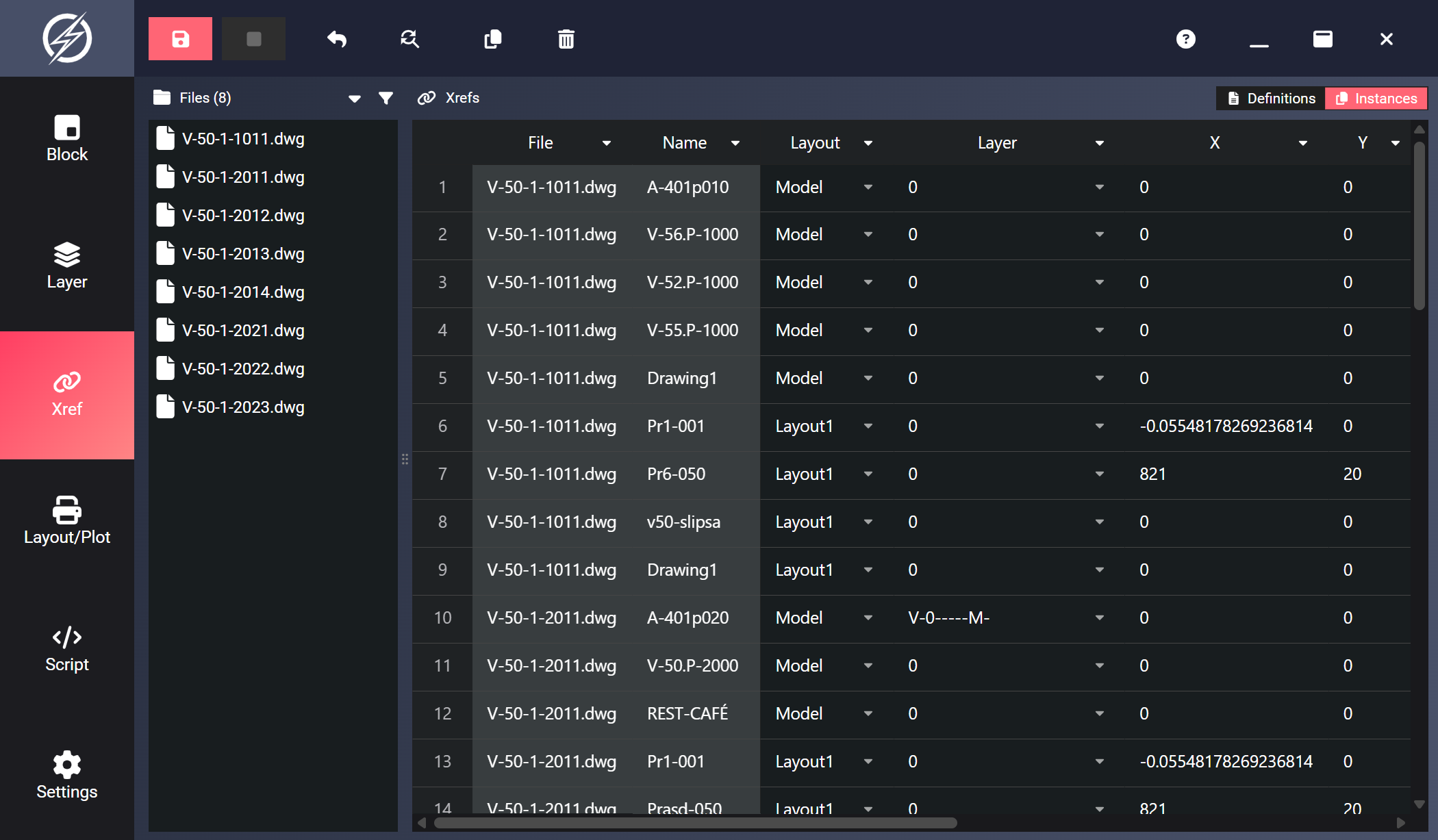
Every placed instance of every xref, grouped by file. An xref attached once can be placed several times in a drawing, and each placement is its own row.
| Column | Editable | Description |
|---|---|---|
| File | No | Source DWG filename |
| Name | No | Xref name |
| Layout | Yes | The layout (model or paper space) the instance is placed in |
| Order | Yes | Draw order among the xrefs in the same layout (1 = bottom/drawn first) |
| Layer | Yes | The layer the instance is inserted on |
| X / Y / Z | Yes | Insertion point |
| Scale X / Y / Z | Yes | Scale factors |
| Rotation | Yes | Rotation in degrees |
Draw Order
Section titled “Draw Order”The Draw order column ranks the xref instances within each file/layout relative to each other, while other entities in the drawing keep their positions. Type new numbers to rearrange. Ties keep their current relative order. Use it to batch-fix xrefs that cover your drawings: set the background reference to 1 across all files in one edit.
Moving, Duplicating and Deleting
Section titled “Moving, Duplicating and Deleting”- Layout: pick a different layout from the dropdown to move the instance there. The moved instance lands on top of the target layout’s draw order (the Draw order cell clears until after the save).
- Duplicate instance (copy icon): duplicates the selected instance rows (same xref, layout, layer, scale and rotation) so you can place another copy by editing its X/Y. New copies land on top of the draw order.
- Toggle remove instance (trash icon): marks the selected instance rows for deletion. Deleting an instance does not detach the xref. Its definition stays attached even with no placements left. To detach, use the Definitions view.
Toolbar (Instances)
Section titled “Toolbar (Instances)”| Button | Action |
|---|---|
| Save | Write all xref changes (definitions and instances) back to DWG files |
| Stop | Cancel an in-progress save operation |
| Undo | Revert changes in selected cells |
| Find/Replace | Find and replace in selected cells |
| Duplicate instance | Duplicate the selected instance rows |
| Toggle remove instance | Mark/unmark selected instance rows for deletion |
Filtering and Sorting
Section titled “Filtering and Sorting”Sort by clicking a column header, and filter via the dropdown arrow on any header. See Filter and Sort for how table filtering works.
Toolbar (Definitions)
Section titled “Toolbar (Definitions)”| Button | Action |
|---|---|
| Save | Write all xref changes (definitions and instances) back to DWG files |
| Stop | Cancel an in-progress save operation |
| Undo | Revert changes in selected cells |
| Find/Replace | Find and replace in selected cells |
| Make path absolute | Convert selected xref paths to absolute |
| Make path relative | Convert selected xref paths to relative |
| Add xref | Attach new xrefs to the selected files |
| Toggle remove xref | Mark/unmark selected xref rows for deletion (detach) |